
PowerShell - Dynamic Parameters
Dynamic Parameters for your PowerShell Cmdlets
One of the things I love about PowerShell is its great tab completion. Using tab completion often saves you a lot of hassle with typos you may overlook otherwise and in my opinion it eases the discoverability and understanding of many parameters greatly. Seeing possible values for a parameter often makes you understand what it will do before even looking into the documentation.
I often use ValidateSet in my parameter sections but this only gives you the ability to validate against a static set of strings or a range of numbers. If I wanted to Validate against a set of virtual switches of my local Hyper-V installation I’d use a parameter like this:
Param (
    [Parameter(Mandatory = $true,
               ValueFromPipeline = $true,
               Position = 0,
               Helpmessage = 'The virtual switch the VMs should get connected to'
               )]
    [ValidateSet('EthernetSwitch','WiFiSwitch')]
    [String]
    $VirtualSwitch
)
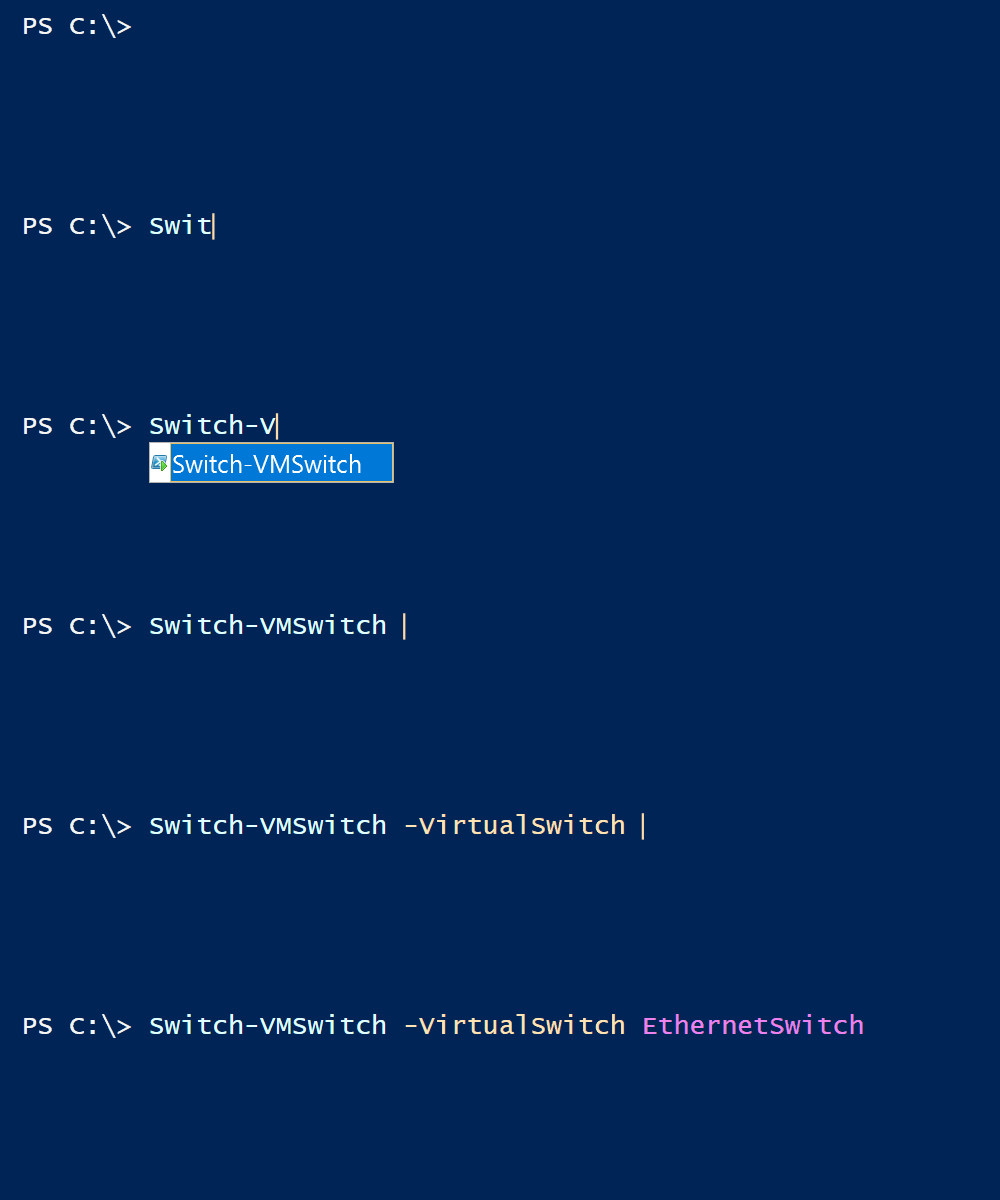
This is a good option in a lot of cases. It provides tab completion and I don’t have to look up how I named my switches each time I want to use the Cmdlet. But it would be even better if these ValidateSets could get populated dynamically. For example if the value of the parameter is dependent on the environment the script is run in, be it the OS, the PowerShell version or simply the path the Cmdlet is called from.
In my example I’d want to populate the set dynamically since changing the script every time I add a new virtual switch is not something I’ll remember or want to do.
A quick look at the official documentation with Get-Help about_Functions_Advanced_Parameters will tell us this is entirely possible. There’s also a good article by Martin Schvartzman, which shows the basic creation of a DynamicParameter.
Unfortunately it’s not quite as easy as just putting a command to retrieve the validation strings into the ValidateSet like this [ValidateSet(Get-VMSwitch)] . But we can use a DynamicParam block below our usual parameters to create all kinds of awesome dynamic parameters.
In the example I’m going to show you, we will simply retrieve a list of existing Hyper-V virtual switches for a Cmdlet I wrote to quickly change the switch my VMs are connected to when I’m switching my Notebook from Ethernet to Wi-Fi.
Creating a Dynamic Parameter
First of all, we’re going to specify the name and the properties of our dynamic parameter.
# Name of the Parameter
$ParamName = 'VirtualSwitch'

# Create and specify the parameters attributes
$ParamAttributeProperty = @{
    Mandatory = $true;
    HelpMessage = 'The virtual switch the VMs should get connected to';
    Position = 0
}
$ParamAttribute = New-Object System.Management.Automation.ParameterAttribute -Property $ParamAttributeProperty
Now we need to create the ValidateSet and specify how it should get populated.
$ParamValidateSet = Get-VMSwitch | Select-Object -ExpandProperty Name
$ParamValidateSetAttribute = New-Object System.Management.Automation.ValidateSetAttribute($ParamValidateSet)
We’ve got all our desired Attributes now and can store them in an AttributeCollection.
$ParamAttributeCollection = New-Object System.Collections.ObjectModel.Collection[System.Attribute]
$ParamAttributeCollection.Add($ParamAttribute)
$ParamAttributeCollection.Add($ParamValidateSetAttribute)
Next we create the RuntimeDefinedParameter. We have to specify the ParameterName, its type and the AttributeCollection.
$RuntimeParam = New-Object System.Management.Automation.RuntimeDefinedParameter($ParamName, [string], $ParamAttributeCollection)
To finish our DynamicParam block we need to create a ParameterDictionary, add our new DynamicParameter and export the dictionary. We need to give it the ParameterName as key and the just created RuntimeDefinedParameter as value.
$ParamDictionary = New-Object System.Management.Automation.RuntimeDefinedParameterDictionary
$ParamDictionary.Add($ParamName, $RuntimeParam)

$ParamDictionary
The final DynamicParam block should look like this now.
DynamicParam {
    $ParamName = 'VirtualSwitch'

    $ParamAttributeProperty = @{
        Mandatory = $true;
        HelpMessage = 'The virtual switch the VMs should get connected to';
        Position = 1
    }
    $ParamAttribute = New-Object System.Management.Automation.ParameterAttribute -Property $ParamAttributeProperty

    $ParamValidateSet = Get-VMSwitch | Select-Object -ExpandProperty Name
    $ParamValidateSetAttribute = New-Object System.Management.Automation.ValidateSetAttribute($ParamValidateSet)

    $ParamAttributeCollection = New-Object System.Collections.ObjectModel.Collection[System.Attribute]
    $ParamAttributeCollection.Add($ParamAttribute)
    $ParamAttributeCollection.Add($ParamValidateSetAttribute)

    $RuntimeParam = New-Object System.Management.Automation.RuntimeDefinedParameter($ParamName, [string], $ParamAttributeCollection)

    $ParamDictionary = New-Object System.Management.Automation.RuntimeDefinedParameterDictionary
    $ParamDictionary.Add($ParamName, $RuntimeParam)

    $ParamDictionary
}
Using this in a new custom Cmdlet will now provide us with our new DynamicParameter and the correct ValidateSet. But since there is no variable being created from DynamicParameters by default we can’t use its value inside the script. Therefore we need to create a new variable in the Begin block of our script. We can pull the value from $PSBoundParameters, a hashtable holding all bound parameters as key-value pairs. Since we might use multiple DynamicParameters, we’re going to use a foreach loop to generate our variables (Found this in RamblingCookieMonster’s New-DynamicParam script).
Begin {
    # Loop through all keys in $PSBoundParameters
    foreach ($Param in $PSBoundParameters.Keys) {
        # Check if the variable is already present
        if (!(Get-Variable -Name $Param -scope 0 -ErrorAction SilentlyContinue)) {
            # Create the new variable
            New-Variable -Name $Param -Value $PSBoundParameters.$Param
        }
    }
}
Now we have a fully functional DynamicParameter which will suggest all of our defined values, and automatically update when there are new ones.

Dependency on other parameters or environment
Now we have a working DynamicParameter with a ValidateSet that’s populated dynamically by getting all local virtual switches. But what if we want our Cmdlet to be usable in different scenarios? Maybe we want our ValidateSet to retrieve its values from a remote host, but only if we are running the Cmdlet against a remote system. In this case we can check if other parameters are set and shape our ValidateSet dependent on them. We can use simple if-statement in our DynamicParam block to accomplish this.
First let’s create a new parameter called ComputerName. We’ll set the default value to the local computer.
Param (
    [Parameter(Position = 1,
               ValueFromPipelineByPropertyName = $true)]
    [String[]]
    $ComputerName = $env:COMPUTERNAME
    )
Unfortunately, default values won’t get passed to the DynamicParam block, so if the ComputerName parameter is not called PowerShell will assume it is empty. To get around this we simply check if the parameter is populated and retrieve our ValidateSet like so:
DynamicParam {
    if ($ComputerName) {
        $ParamValidateSet = Get-VMSwitch -ComputerName $ComputerName | Select-Object -ExpandProperty Name
    } else {
        # This statement is used if $ComputerName is not populated, so we need to specify the default value here
        $ParamValidateSet = Get-VMSwitch -ComputerName $env:ComputerName | Select-Object -ExpandProperty Name
    }

    ...
}
Now if we run our command without explicitly naming a ComputerName, it will be executed using the default value, the local computer, but if we’re specifying another ComputerName the ValidateSet will be populated with the remote computer’s switches.

Discoverability
There is still one problem with DynamicParameters. The Get-Help function won’t discover our newly created parameters and they may stay hidden for the user, especially if the whole parameter itself is dependent on the existence of another parameter.
This also results in wrong syntax and parameter documentation (as mentioned in this blog post by June Blender).
As a workaround we should add the actual syntax and parameter description to the .DESCRIPTION field in the comment-based help. If you want to see an example for such help you can read the aforementioned blog post or visit my github repo where you can find the whole script including multiple DynamicParameters and examples on how to add help for DynamicParameters.


